Friday, 22 February 2013

All About Your Computer's BIOS

Are you confused by the computer BIOS? The BIOS is a fundamental component of any PC and if you really want to get into the guys of a computer, it's good through understanding what BIOS Is all about.

This article gives you a summary of what BIOS is and how you can play with the basic and advanced options in a typical BIOS configuration.

Definition

First up, let's just define what the BIOS is. The BIOS stands for the Basic Input-Output System of a PC. It is stored on a BIOS chip on the motherboard and it is the interface between your operating system and the computer's hardware. All the software actions you make, e.g. click a in Windows XP, are translated into machine instructions which pass through the BIOS and then subsequently to your monitor, graphics card and what not.

The BIOS is a crucial component of a PC If it fails, your PC isn't going to boot up. I always skip a heartbeat if I see any funny behavior with a PC's BIOS. Because it spells (almost certainly that is) doom for the computer. Make sure you're very, very careful if you intend to fiddle around with the BIOS in anyway. Children, don't do this at home without the supervision of a technie.

Basic Options

Let's run through the basic options of a BIOS setup. Right after you power up the computer, there is usually a key you can hit (usually F8) which allows you to access the PC's BIOS.

In the basic menu in the BIOS, you should see settings for configuring hard drives and boot up options. You can specify which are your primary and secondary hard risk and which will boot up first. You can also specify if the floppy disk or CD Rom boot support before or after the hard disk.

Advanced Options

If you go in to the Advanced Options menu, you can delve into the advanced options for the BIOS configuration. If you're into overclocking, you can specify a different CPU frequency than the default. But be very careful when you do this - you may end up burning your CPU chip if you don't know what you're doing.

In the advanced options menu, you can also change memory frequency and timing, as well as the AGP speed for your graphics card. Again, exercise extreme care when playing around with these settings. You can damage your PC if you don't know what you're doing.

There are many other options in a computer's BIOS you can play with. Some of them include password and security options to limit access to the system, or stuff like power saving options. You can also control things like whether the Numlock key should be on or off when you first start the system.

Conclusion

I hope the article has helped you understand a little of what goes into a com0utper's BIOS and how you can make use of it. Remember, the BIOS is such a fundamental component of any PC that you MUST exercise extreme caution when meddling with it. If you're not sure - don't change anything. It's best to understand the BIOS properly from an expert or read a good book before changing it in any way.

How To Safeguard Your Computer Against Online Threats

Your computer is like the human body. It is susceptible to viruses, malicious codes and other threats from the cyber world that can infect and destroy its data. Cyber crime is on the rise and just like new diseases in the real world, cyber criminals and hackers engineer new viruses and programs every now and then to intrude into people's computers in order to hack and steal sensitive stored data. There is no cause for concern however as there are certain precautions you can take to protect your computer from the menace of online threats and intrusions.

Antivirus - With the present technological advancement, hackers have become more malicious. They release new viruses and worms online that get installed on the computers of unsuspecting users. This leads to an epic loss of data and in worst cases results in a crash as these viruses wipe out all crucial system files from the computer. However, installing an effective antivirus program can protect your computer from these online threats. Once installed the antivirus program will automatically secure your computer by individually scanning all files and folders. If any viruses or malicious threats are detected, the antivirus program would notify you and quarantine the infected file in a safe location on your computer.

Anti spyware - Spyware is one of the stealthiest online threats that quite often goes undetected by the user. Spyware are created by unscrupulous online marketers who use the program as a behavioral tracker to keep tabs on the type of websites you visit so that they can decide which product you would most likely purchase. Spyware is harmful for your computer as it changes your settings and drastically slows it down. They usually install themselves in the guise of tool-bars or enter your computer directly from certain websites. Installing Anti spyware software would shield your computer from this menace. The Anti spyware software gets activated the moment you turn on your computer and constantly monitors and scans your files and folders for any spyware that might be present.

Firewall - Firewall is a basic default security setting found on every Windows supported computer. When activated, it monitors the stream of data that is relayed from the Internet to your computer and vice versa. The firewall scans all applications that are connected to the Internet and prompts you with a message if it notices a suspicious unidentified program. It is a fairly effective security measure that is best supplemented by a potent antivirus program for maximum security.

In addition to the methods mentioned above, you can follow these simple precautions:

-Always scan for viruses before downloading an email attachment

-Never open an unknown email attachment as it could most likely be a virus

-Always ensure to run a virus scan before opening or installing a downloaded file or program from the Internet.

-Avoid clicking on indiscriminate pop ups that appear on your browser window.

Keeping these basic preventive measures in mind, you can ensure complete protection for your computer from the peril of online threats.

Wednesday, 29 February 2012

Ten Easy Ways to Boost Your Computer Security

These days it is very easy to take our computers for granted. It is almost as if they are part of our office or household furniture. However, we all have increasing amounts of sensitive data stored on our computers and it's worth being aware of the ongoing risks so here we take a look at the best ways to maintain and improve your computer security.

Of course adding some computer security features to a pc costs a little extra money, but it is essential to do to ward off attacks from the rogues out there determined to upset home pc users as well as large scale organizations. Viruses can vary in seriousness such as harmless but annoying e-mails or spam to programs delivered to PCs that can wipe out all the data stored on the computer.

Let's take a look at ten ways all of us can improve our computer security:

1. Password Protection - A good start to computer security is to put in a barrier to unauthorised users of your computer. Protect your login id with a password. That way you can ensure that only you can access confidential information on your computer. Never disclose your passwords to other people, don't write them down and try and make them unique with a combination of letters, numbers and other characters.

2. Operating System - Keep your operating system updated frequently. Turning on the auto-update in Windows Update will boost your computer security. Microsoft releases frequent fixes to vulnerable areas of computer security so this is critically important.

3. Anti Virus Software - Ensure your pc has up to date anti-virus software installed. This is a key element of computer security and will help detect and remove viruses as well as block spam e-mails.

4. Firewall - At the same time your computer security should be enhanced by adding a firewall especially if you are part of a network either at work or home. The firewall setting on your router should be switched on as these could leave you exposed to hackers or indeed your neighbours might be able to view what you are doing on the internet.

5. Regular Scans - Your anti-virus software may do regular background checks, but it is a good idea to run a scan at least once a week. This will help clean up your system by deleting unwanted cookies and temporary internet files.

6. E-Mail Attachments - Be very wary of attachments to e-mails sent to you, especially if they are from an unknown source. These could potentially carry a virus that will prove damaging to your computer. A good computer security tip is to ignore attachments from unknown sources and delete the e-mail. You can save any attachments or downloads to your desktop and scan them with the anti-virus software.

7. E-Mail Links - It is best not to visit websites by clicking links attached to an e-mail. Most links taking you to a home page asking for log-in or account details are scams. Any details entered here can be used by the hacker who set up the link.

8. Suspicious E-Mails - Ignore e-mails that look suspicious and delete them as these could breach your computer security. Ignore any e-mails purporting to be from your bank or someone else you hold an account with asks for personal details or passwords. This breach of computer security is sometimes known as phishing.

9. Websites - Be wary of websites you wish to enter. Some anti-virus programs offer warnings next to websites to indicate whether they can be trusted. Avoid clicking on a website if it is not rated as trustworthy.

10. Online Payments - If you need to make a payment online ensure that the payment screen is protected. The page will usually indicate that it is secure and may have a padlock image at the top of the page.

Anyone still not convinced may want to bear in mind some of the facts about viruses. In January 2007 a worm called Storm appeared on the scene. Nine months later it was believed that some 50 million computers had been infected by the worm. Computer security is so important to protect you and your personal data.

 
Article Source: http://EzineArticles.com

Wednesday, 15 February 2012

Save Money With Preventive Computer Care

Computers are an everyday part of life in the modern world. However, computers require special attention and care in order for them to function properly and to operate safely. Here are some basic guidelines to help you maintain your computer equipment and to keep your equipment functioning for a long time. After all, keeping your equipment running will save you money.

What most people do not know or often overlook;

    Keep computer equipment away from direct sunlight to prevent overheating.
    Keep computer equipment away from direct exposure to water or humidity to prevent damage.
    Keep computer equipment in a clean and dust free area.
    Always use surge protectors to prevent electrical surge damage to your system.
    Place an anti-static mat in the area where you are operating your computer to eliminate or prevent anti-static damage to your system.
    Have your system's interior cleaned at least once every year to keep it running smoothly and to protect your investment.


Prevention is the key
The most important activity that you as a computer user can do is to keep your computer as clean as possible. Your system's user guide is the best source to find specific information about how to clean your system's outer components; but here are some basic tips you should always follow.

What you should NEVER do;

    NEVER eat or drink while operating your computer. Food crumbs can easily damage your computer.
    NEVER place an open container containing water (or any other liquid) on or near computer. Accidental spillage can damage your computer or give you an electrical shock.
    NEVER use your computer's keyboard with dirty or sticky hands (wash your hands before using your computer).
    NEVER allow your pets near your computer. Dust and hairballs can accumulate inside the computer's case and cause your system to overheat.


Computer maintenance
Basic computer maintenance should be part of your regular routine. Keeping your computer dust and dirt free, will guarantee that your computer will last and will give you years of reliable performance. Please consult your user's guide for more specific maintenance practices and intervals.

How to clean your computer system

Computer systems require cleaning of internal parts especially when used outside of a clean environment. However, only an authorized technician should open the computer case and clean sensitive electronic components. Consult your user guide to determine the best interval for internal cleaning and take your computer to a certified technician.

Regular cleaning of computer system's exterior involves the following:

Monitor screen
Your computer monitor is likely to be the component that will require the most attention, because computer monitors tend to get dirty from regular use and from dust. To clean your computer monitor or LCD, you can use special chemicals design to clean computer monitors without damaging them.

To clean your computer's screen you can use OPTECH CTR Screen Care. This special cleaner is an anti-static cleaner and coating which safely removes fingerprints and smudges from computer display screens. This cleaner also leaves the surface treated with an invisible dust repellent film, which contains an optical ingredient which fills-in minute scratches eliminating surface distortion and reducing eye fatigue.

How to apply a computer screen cleaner
First, NEVER spray the cleaner directly onto your computer. Instead, spray a lint-free cloth lightly with the computer screen cleaner, and then clean your screen. Be sure to hold the cloth away from your computer when spraying the cleaner to the cloth.

Keyboard maintenance
During everyday use, a keyboard can get pretty dirty and sticky. Dirt and other debris can fall or accumulate between the keys and cause damage or prevent the keys from functioning properly. To clean your computer's keyboard you must use either canned air/gas or a small computer-specific vacuum cleaner. NEVER apply any cleaner or liquid directly to your keyboard. If the keys are dirty, use a lint-free cloth that has been sprayed with computer cleaner to lightly and carefully clean your computer's keyboard. DO NOT clean your computer while the computer is operating, and avoid using your computer till the cleaner has dissipated to avoid possible damage to your equipment. Consult your user's guide for precise instructions on your particular machine.

Case/Tower maintenance
Your computer case will require maintenance. You should remove dust and grime from your computer's air vents and your computer's case. YOU SHOULD NEVER spray any type of cleaner into your computer's air vents or you could damage your system. ALWAYS use canned air/gas to clean your computer's vents or air intakes. Canned air/gas cleaners are idea for cleaning air vents, keyboards, disk drives and computer case crevices. The exterior of your computer's case can be cleaned with a lint-free cloth sprayed with an anti-static computer cleaner. When in doubt about how to clean your computer system, ALWAYS consult your user manual or call your system's technical support department.

Safe and clean computing will save you money!
Following these basic computer care guidelines should help you to take good care of your computer system, and keep it running for years. Preventive maintenance will keep your system from having problems and will save you money in the long run. For specific questions about your particular system, you should ALWAYS check your user guide or contact technical support.

Source: http://EzineArticles.com

Friday, 3 February 2012

7 Tips to Keep Your Computer in Tip-Top Shape.

In this modern age we keep in touch with relatives either through chat or emails, search for information about anything under the earth and sometimes out of the earth as well. We also do business proposals and communications with associates and of late do shopping and pay utility bills sitting conveniently at home. This is possible with the help of our computer and an internet connection. So it is important that we take care of our computer to work efficiently and without any hitches. Listed here are 7 tips to keep your computer running in tip-top shape.

1 Value in Brand: When you depend on the computer to do lot of your personal as well as business communications, it is of paramount importance that you invest in a good computer to do that. There are assembled sets available at a price lower than the quality branded computers. But in the long run they will make you incur more money on servicing and repairs due to the low quality parts used in them. Invest on a Good Brand for reliability and even if something goes wrong, the warranty will protect you from added expenditure.

2 Software: There is a tendency to rely upon counterfeit operating systems to save some money. This will prove as a wrong decision on the long run. Information technology being on a fast track, there are newer versions and updates to the existing versions released on a regular basis. Only genuine software is capable of updating them online. Further, there is no guarantee that the counterfeit will work without trouble. Imagine a situation when you have to reach an important client to close a deal but your computer crashes. Insist on OEM software.

3 Antivirus: Computer and Internet is regularly targeted by hackers to steal important data and details like username and password to use them for anti social activities. You can lose your money and credibility in that computer if your online bank account is compromised. Install the latest antivirus program on your computer and update them on a regular basis to stay ahead of the hackers and have peace of mind.

4 Power supply: As it is food for man, a computer to function at its best, require a continuous and steady supply of power. In case you area is prone for black-outs or power cuts valuable data can be lost when the power is lost abruptly while you are working on an important work. Therefore it is advisable to ensure a steady supply of power through a UPS (Uninterrupted Power Supply).

5 Qualified Personnel: The computer being a sensitive gadget, operations of them should be done by qualified personnel. The computer should be operated only by those who are aware of the basic functioning of the machine. Further, when there is a malfunction rather than fidgeting with the machine, it should be referred to the service personnel.

6 Regular Service: It is advisable to enter into an AMC (annual maintenance contract) with the supplier of the computer to ensure timely service and to avoid extra expenditure in way of repairing charges. Regular service will keep your computer in tip-top condition.

7 Beware of spam: One should be careful not to open spam emails which may contain viruses that will infect the computer. With the hackers also getting wiser day by day, any such email with "smart virus" in them can surpass the antivirus program installed. It will infect the system and important data will be lost.

It really pays to take care of your computer for a trouble free working day.

Source: http://EzineArticles.com

Monday, 30 January 2012

Tips to Create Strong Passwords

A password is the most common method of authentication. A good password must be difficult to guess and easy to remember. But if you do not have a good password or neglect to keep them confidential, you will be an easy target for hackers. Also, most people tend to create outrageous passwords which are easy to forget. In some cases, it can be easily remedied. For example, when you forget the password to your computer, you can use the windows password reset tool to create a new password.

People tend to use easy-to-remember information such as phone numbers or birthdays for their passwords. But, using such data as a password makes you vulnerable to hackers. The following are important tips to remember while creating a strong password.

Unique

Try to create a password that is unique to you which means that the word should have special meaning to only you. Using simple information like your parent's names or your pet's name will be easy for anyone to figure out and must be changed immediately. It is easiest to change your computer password as you just need to use the windows password reset tool. For accounts like banking, it is a more difficult process.

Characters

You can choose from a variety of special characters like '*' or '#' to make your password hard to crack. Make sure that you use at least one special character in your password. You can also use a combination of uppercase and lowercase letters for your password. Though it is tricky to remember, it constitutes a strong password. It is advised to use the following symbols for a strong password:!"?$%^&

Length

Studies have shown that a strong password contains 15 characters. Though it might not be easy to remember a 15 word password, it is advisable to have at least 7 characters to make it strong.

Separate passwords

When you create passwords, make sure that you do not use the same password for all your accounts like e-mail, banking, etc. If you do, once your e-mail account is hacked it is more than certain that your bank and other accounts will get hacked as well.

Meaningful

When you create a lengthy password, make sure that it has a special meaning to you. If you choose a random word, it is possible that you might forget it. In case you forget your computer password, use the windows password reset tool to create a new one.

Now that you have created a strong password, make sure that you change it often and do not write it down. It is also important not to provide a lot of information on social networking sites as it provides easy access to all. Although you can be more easy-going with your personal computer password, make sure that you change it every few months with the windows password reset tool. When you create passwords, take care that you do not use words from the dictionary, your own name or your company name.

Article Source: http://EzineArticles.com/

Sunday, 8 January 2012

How to Increase Virtual Memory in Windows XP

Memory low? Is your computer lagging behind? It might be because you're running low on real memory. When this happens your computer often commandeers a portion of the hard drive to use as "virtual memory." If you find yourself running out of Virtual Memory, or keep getting messages telling you that you are, you might want to increase this to a more acceptable level using your computer's control settings

1. Click on Start and right-click on My Computer.


  2. Choose Properties.


3. Click on the Advanced tab. Under Performance, click on the Settings button.


4. Under Virtual Memory, click on the Change button.


5. Here is where you decide the amount of Virtual Memory that you need to increase. Try playing around with a few hundred megabytes above the assigned amount.


6. An alternative way to fix your low memory problem is to eliminate non-essential programs, documents and files from your computer's hard drive. This will allow you to free up space that can be used by your computer as memory.

post source: http://www.ehow.com/

Thursday, 22 December 2011

How To Increase Computer Speed


Computers runs different files upon start up. Some of them are unnecessary. Some of them are just junk. But do you want to find a way on how your computer be able to start in just a matter of seconds? This Post will demonstrate you how to increase your computer start up speed.

1. Keep Your Hard Disk Clean

Keeping your hard disk clean from unnecessary files can be a big help on improving your computer start up speed. It's like keeping your engine clean for it to be able to run flawlessly. This technique will keep your hard disk clean.

Click on Start >> Programs >> Accessories >> System Tools >> Disk Cleanup

Delete Temporary Internet Files, Chkdsk files, Temporary files and Old Compress files

2. Download Tune Up Utilities 2010

This computer utility software is just incredible. You can customize, speed up your internet speed, speed up your computer functionality, computer start up speed, Turbo Mode, Live Optimization, Fix Problems, and more.

3. Uninstall Useless Programs

Check all the installed programs and view their Status. Of a particular application displays Used: Rarely, then it is a good idea to remove it. This will free up a lot of disk space as well as speed up your computer.

Go to Start >> Control Panel >> Add or Remove Programs

4. Disk Defragmentation

Disk Defragmentation increases your computer speed dramatically. Though it takes time to finish the defragmentation, Disk Defragmenter is a tool that rearranges the data on your hard disk and reunites fragmented files so your computer can run more efficiently.

To run defragmenter, go to Start >> All Programs >> Accessories >> System Tools >> Disk Defragmenter Click "Analyze" in order to determine if you need to defragment a particular drive and estimated time required. Click "Defragment" to start the defragmentation process. This normally takes a long time so I would recommend doing this when you do not need to work on your computer for 1-2 hours.

5. Modify Windows Start Up

This is the most effective technique of speeding up your computer start up speed.

Go to Start >> Run... In the run window, enter "msconfig" (without quotes) and then hit enter. You need to take precaution while performing this step.

Go to "Startup" tab and deselect the programs that you do not want to start at windows startup. Once you are satisfied with your selections, click "Apply".
Hope this Helps. 

Post Source: http://EzineArticles.com/5320186

Tuesday, 29 November 2011

How to Block Websites from your Computer without using any Software.


Step 1: Open “Run” from the start menu, Just copy paste the following path and hit ENTER.

notepad c:\WINDOWS\system32\drivers\etc\hosts

Step 2: When this hosts file is opened in Notepad, at the end of the file you will see something like “127.0.0.1 localhost”.

Step 3: Under “127.0.0.1 localhost” just add another website URL that you want to block.

For Example:- 
127.0.0.1 localhost
127.0.0.2 www.google.com
127.0.0.3 www.Yahoo.com

Step 4: Make sure every time you add another website, the last digit of the address 127.0.0.x should not be the same.


Save the file and exit.
So, here you go.
Restart your browser if it is opened and changes will take place immediately.
You can block as many websites as you like with the above technique.
If you want to remove the ban later, open the same file as mentioned in Step 1 and delete the above lines.

Thursday, 10 November 2011

How To Install Drivers.

There are 2 ways to install a driver. One through setup & 2nd manually; Following instructions are for manually installing driver:

  1-  Right click on "my computer"
  2-  Choose "properties"
  3-  Choose "device manager" (In Windows 2000 ),
       you have to choose  the "hardware" tab first and then "device manager"). 
       This will display a list of the devices that are on your computer.
  4-  Right click on the device and click  "properties".
  5-  Choose "driver" and click "update driver"
  6-  You will be asked to browse for the new driver

           Thanks Best Of Luck

Thursday, 27 October 2011

Importance Of Windows XP


Windows XP  is a most common operating system using in the world & use on personal computers, including home and business desktops, laptops and media centers.  It is a much easier & improved version of Microsoft then all other versions like ( WinMe,Win Vista, Win7 ) Mostly or can be say that every people knows how to operate or how to install Windows XP, Windows XP, the successor to Windows 2000 and Windows Me,  its main advantages over ME were stability and Internet connectivity. ME proved to be a somewhat unstable system and was quickly losing the public's favor. Windows XP solved these problems by being much more stable and continuing the trend that Microsoft had started in Windows 98 of making connection to the Internet and other networks simpler. Microsoft releases service packs for its Windows operating systems to fix problems and add features. Each service pack is a superset of all previous service packs and patches so that only the latest service pack needs to be installed, and also includes new revisions, Service pack 2 offered many security improvements over the initial version of the operating system. Eventually, Service pack 3 would speed the system up a little, but it never got back to its release speed. Windows XP is a complete GUI (graphical user interface ) operating system, a graphical user interface is a type of user interface that allows users to interact with electronic devices with images rather than text commands. But in the end will be just said that Windows XP was a great effort & nice product of microsoft that it was a best solution for every person & for every desktop computers can use any one easily.

Thursday, 20 October 2011

How To Install MS Office 2010


MS Office 2010:

MS Office 2010 is very simple and similar to Office 2007 installation procedure. Users who wants to switching from Office 2007 will definitely enjoy the improved UI and added features in Office 2010. Here are the install Links & video of Office Professional Plus 2010:

1. http://www.intowindows.com/installing-office-2010-rtm/


Wednesday, 19 October 2011

How to install Windows XP


Microsoft Windows is also a type & series of operating systems which produced by microsoft in November 20, 1985 to growing the intrest in graphical user interfaces (GUIs).

Now we will learn you here that how to install windows XP its a very simple & easy, Before you perform the installation i recommend  you to check Windows XP compatibility list to ensure that your hardware is supported by XP or not. If your hardware is not on the compatibility list you can check your hardware manufactures website to download the drivers for Windows XP. Save all the necessary drivers on to USB bus or any CD before you start the installation.
There are all versions of Windows XP CD are bootable. In order to boot from CD/DVD-ROM you need to set the boot sequence. Look for the boot sequence under your BIOS setup and make sure that the first boot device is set to CD/DVD-ROM. You can then perform the following steps to install Windows XP.

Step 1 – First start your computer  & place your Windows XP CD in your CD/DVD-ROM drive. Your computer  should automatically detect the CD and you will get a message saying "Press any key to boot from CD". Soon as computer starts booting from the CD your will get the following screen, & during this screen quickly press any key of your keyboard to start windows installation.


Step 2 – After it you will get a Windows XP Professional Setup screen. Here are the options to install a new Windows, Repair previous windows or quit. As we are installing a new windows we just press Enter to continue.


Step 3– In this step you will be shown the end user licensing agreement. Press F8 to accept and continue.


Step 4 - This is an important step. Here we will create the partition where Windows will be installed. If you have a brand new unformatted drive you will get a screen similar to below. In our case the drive size is 8190MB. We can choose to install Windows in this drive without creating a partition, hence use the entire size of the drive. If you wish to do this you can just press enter and Windows will automatically partition and format the drive as one large drive.
For this demonstration I will create two partition. The first partition will be 6000MB (C: drive) and second partition would be 2180MB (D: drive). By creating two partition we can stores Windows and Applications and in other we can stores our data. So in the future if anything goes wrong with our Windows install such as virus or spyware we can re-install Windows on C: drive and our data on E: drive will not be losted. Please note you can choose whatever size partition you like. For example if you have 500GB hard drive you can have two partition of 250GB each.
Press C to create a partition.


Step 4- Windows will show the total size of the hard drive and ask you how much you want to allocate for the partition you are about to create. I will choose 6000MB. You will then get the screen below. Notice it shows C: Partition 1 followed by the size 6000 MB. This indicates the partition has been created. We still have an unpartitioned space of 2189MB. Next highlight the unpartitioned space by pressing down the arrow key. Then press C to create another partition. You will see the total space available for the new partition. Just choose all the space left over, in our case 2180MB.


Step 5 - Now you will see both partition listed. Partition 1 (C: Drive) 6000MB and Partition 2 (D: Drive) 2180MB. You will also have 8MB of unpartitioned space. Don't worry about that. Just leave it how its is. Windows normally has some unpartitioned space. You might wonder what happened to E: drive. Windows has automatically allocated E: drive to CD/DVD-ROM.
Select Partition 1 (C: Drive) and press Enter.


Step 6 - Choose format the partition using NTFS file system.This is the recommended file system. If the hard drive has been formatted before then you can choose quick NTFS format. We chose NTFS because it offers many security features, supports larger drive size, and bigger size files.


Step 7 - Windows will now start formatting drive C: 


Step 8 - And after formatting drive C it will automatically start copying setup files as shown on the image below :


Step 9 - After the setup has completed copying the files the computer will restart. Leave the XP CD in the drive but this time DO NOT press any key when the message "Press any key to boot from CD" is displayed. In few seconds setup will continue. Windows XP Setup wizard will guide you through the setup process of gathering information about your computer.


Step: 10 – During 33 minutes remaining it will show a dialouge box to Choose your region and language.


Step 11 - Type your name and organization here.


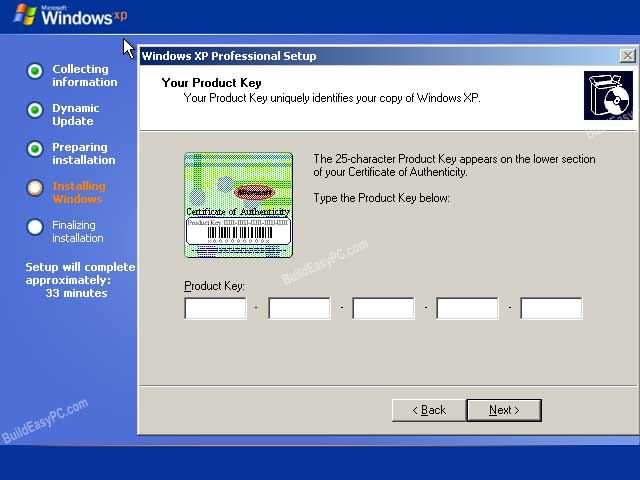
Step 12. Enter your product key here.


Step 13Write here the computer name, and enter an Administrator password. Don't forget to write down your Administrator password for login security purpose.


Step 14Enter the correct date, time and choose your time zone.


Step 15 - For the network setting choose typical and press next.


Step 16 - Choose workgroup or domain name. If you are not a member of a domain then leave the default settings and press next. Windows will restart again and adjust the display.


Step 17In the end Windows will start and present you with a Welcome screen. Click next next to continue for further steps.


Step 18. Log in, to your PC for the first time.


I hope you will like this informative post & any one who don’t know to install windows XP can learn easily how to install windows XP with help of this post. if any sugession any query please feel free to write down in comment box.Thanks
Thanks to buildeasypc.com